Creating an Assessment
Assessments in EduKami allow users to generate quizzes based on specific lessons within a topic. These assessments consist of multiple-choice and true/false questions to evaluate knowledge retention and understanding.
How to Create an Assessment
Navigate to a Topic
- Inside a Skill, open the Topic where you want to add an assessment.
- Click on
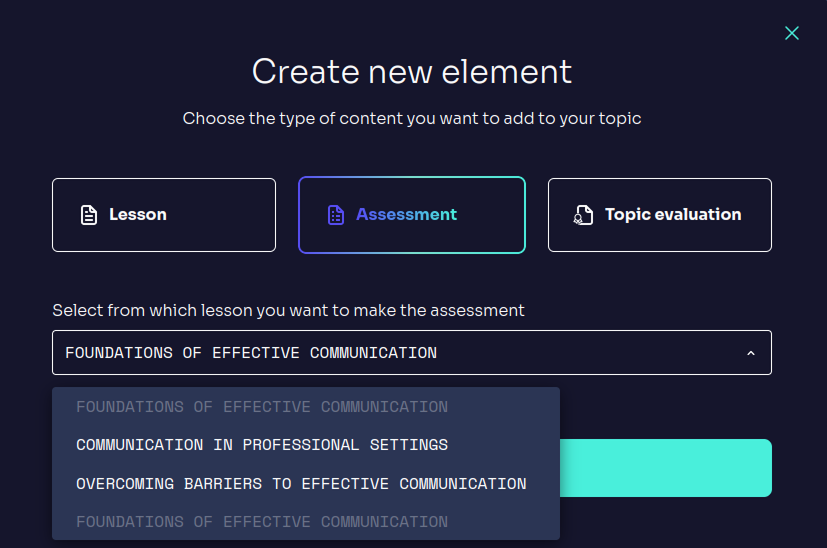
ADD ELEMENTand selectASSESSMENT.
Select a Lesson
- The system will prompt you to choose a lesson within the topic.
- The questions in the assessment will be automatically generated based on the content of the selected lesson.
Automatic Question Generation
- After selecting the lesson, the system will generate a set of questions based on its content.
- These questions may include:
- True or False Questions.
- Multiple-Choice Questions.
Editing an Assessment
Once the assessment is created, you can customize its content:
Modify Existing Questions
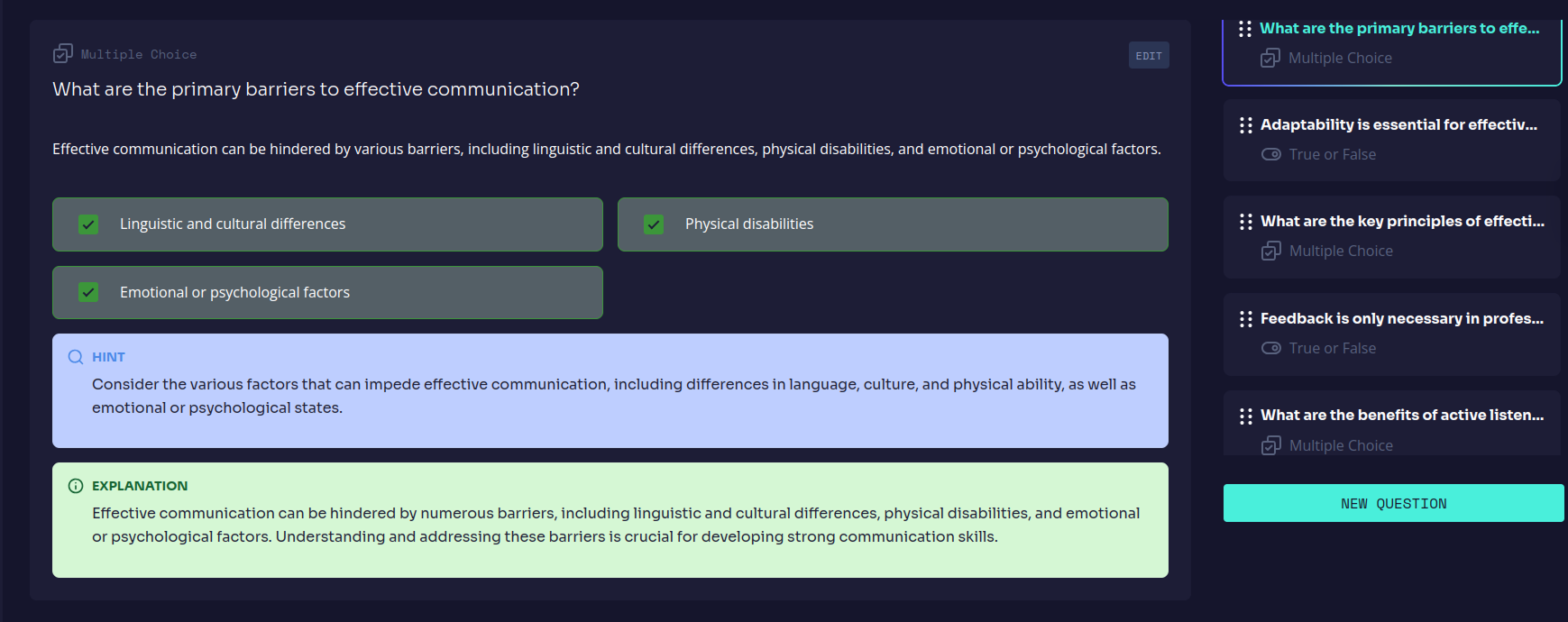
- Click on a question to edit its text, possible answers, and the correct choice.
- Adjust or refine explanations for clarity.
Add or Remove Questions
- Use the
NEW QUESTIONbutton to include additional questions. - Delete unnecessary questions to tailor the assessment better.
- Use the
Rearrange Questions
- Drag and drop to change the order of the questions.
Assessment Interface Overview
- Left Sidebar: Displays the list of questions.
- Main Panel: Shows the selected question and allows direct editing.
NEW QUESTIONButton: Enables manually adding more questions.
Assessments are essential for measuring learning progress, providing feedback, and ensuring comprehension of lesson material.