Creating a Lesson
Once you have selected CREATE LESSON and provided a brief description of the lesson's topic, a structured lesson will be generated. This lesson consists of multiple text blocks that can be further edited and expanded.
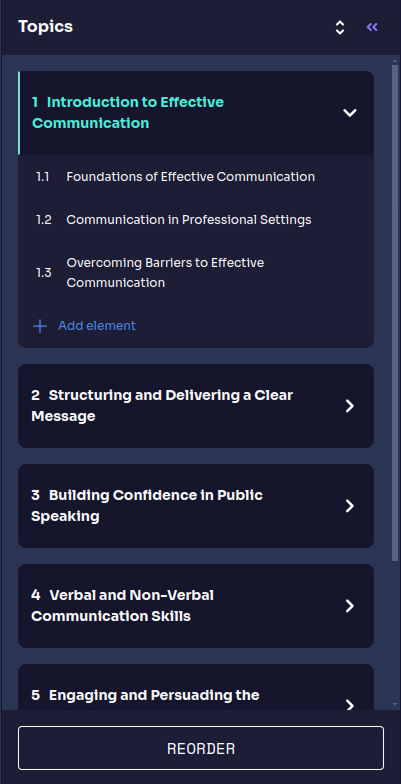
Editing a Lesson
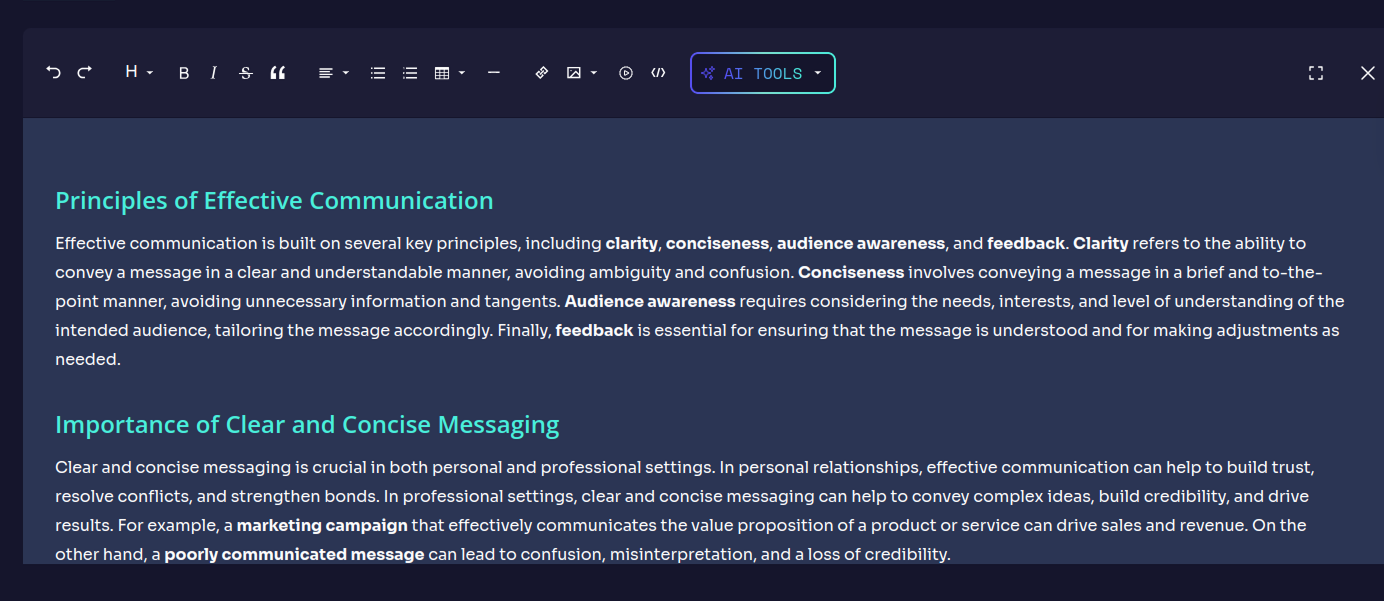
After creating a lesson, you can click EDIT to enter the editing mode. This interface allows you to format the content, add elements, and structure the lesson according to your needs.
Available Editing Tools
The editor provides various formatting options, including:
- Text Formatting: Apply bold, italics, headings, bullet points, and numbered lists.
- Content Blocks: Add sections, tables, images, and code snippets to enhance your lesson.
- Reordering Sections: Drag and rearrange content blocks for better structure.
AI Tools
The AI TOOLS button provides several options to enhance the lesson content dynamically. These tools assist in structuring and enriching the learning materials effectively.
These tools provide an efficient way to create structured and visually engaging content without manually formatting elements.

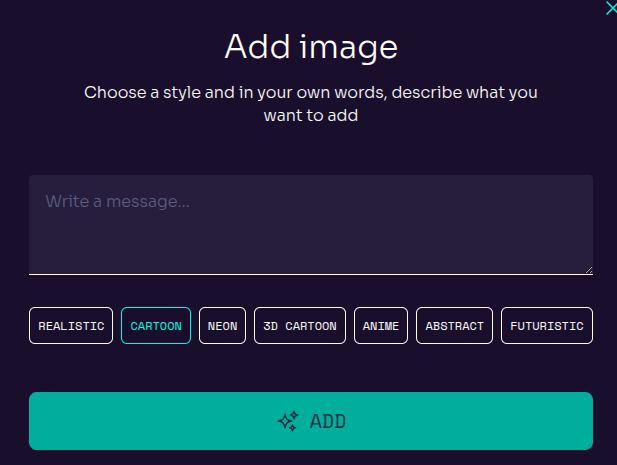
ADD SECTION: Opens a popup where users can describe the content they want to add, and the AI will generate a structured section accordingly.ADD TABLE: Instantly inserts a table that users can edit to organize and display information effectively.ADD IMAGE: Displays a popup where users can describe the desired image and select a style (e.g., realistic, cartoon, neon, abstract, futuristic). The AI generates an image based on the input.ADD CODE: Opens a text field where users can describe the code they need, and the AI will generate a formatted code snippet.
By using these features, you can efficiently structure a lesson that is both engaging and informative.