Billing
The Billing section in EduKami allows administrators to manage the organization's subscription and payment details.
Subscription Plans
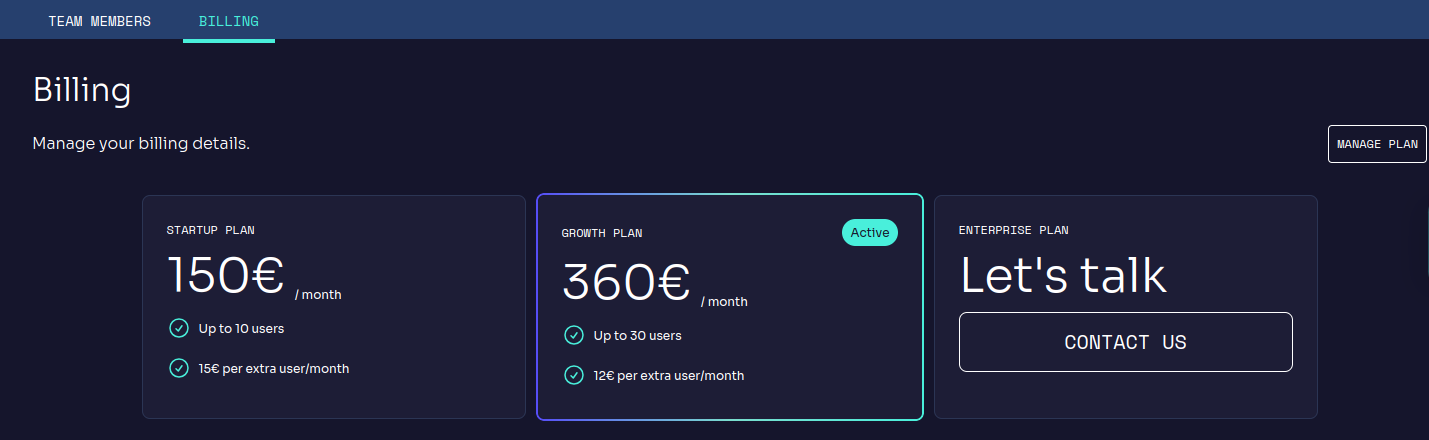
EduKami offers three subscription plans with different capacities and pricing:
Startup Plan 📌 → 150€ / month
- Up to 10 users.
- 15€ per extra user per month.
Growth Plan 📈 → 360€ / month
- Up to 30 users.
- 12€ per extra user per month.
Enterprise Plan 🏢 → Custom Pricing
- For larger organizations.
- Contact the EduKami team for more information.
The active plan is displayed with an Active status label.
Stripe Platform
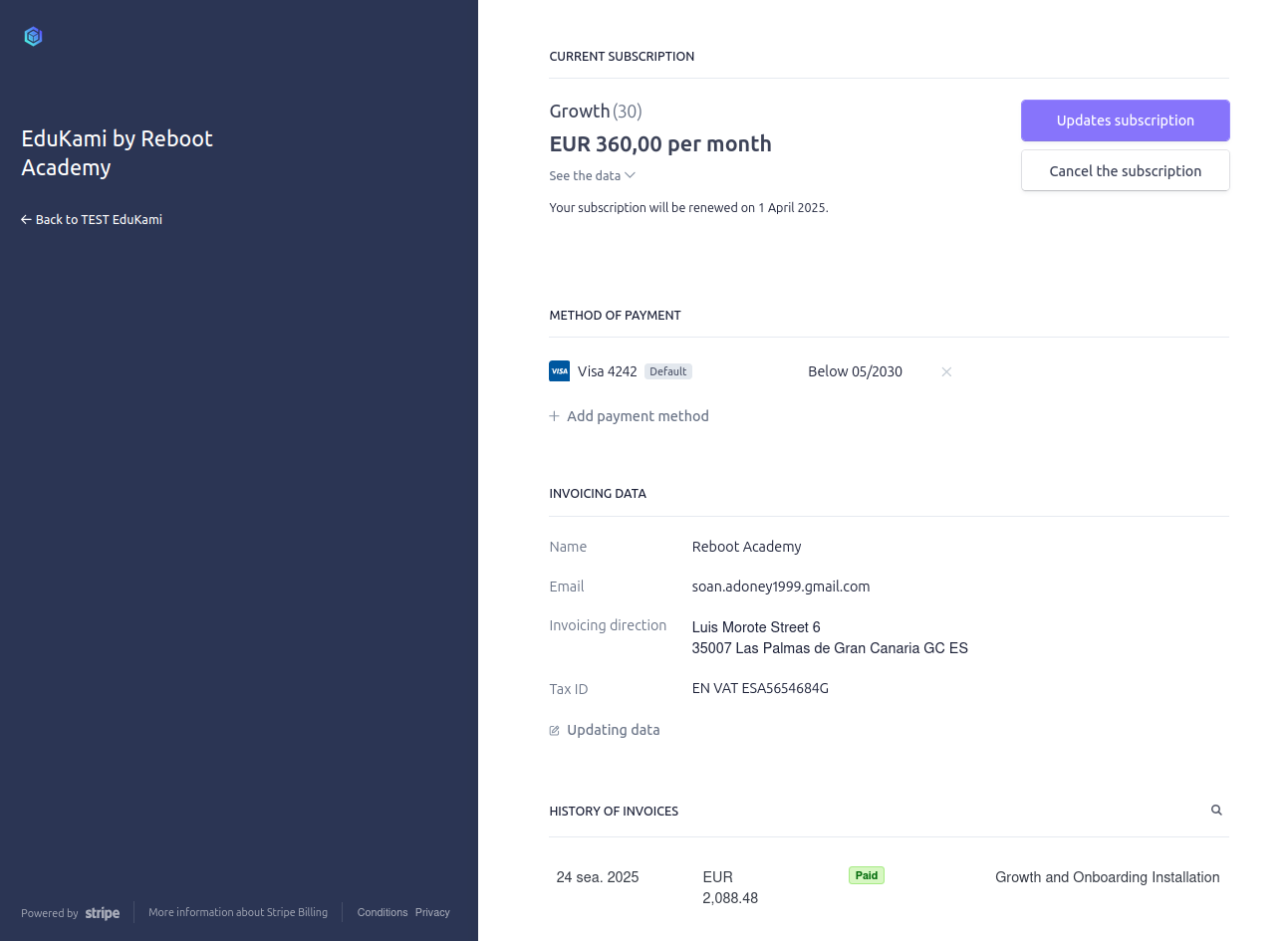
A secure and reliable way to manage your private data, allowing you to purchase the plan that best suits your training needs. If you want to learn more about the security measures the platform offers when processing payments from your bank, visit Stripe.
Payment Management
- Monthly payments are processed on the first of each month.
- Charges are pro-rated if purchased mid-month.
- Additional licenses acquired during the month will be charged proportionally.
Onboarding
The installation and configuration process for the equipment required for the contracted service, including staff training on this new business training tool.
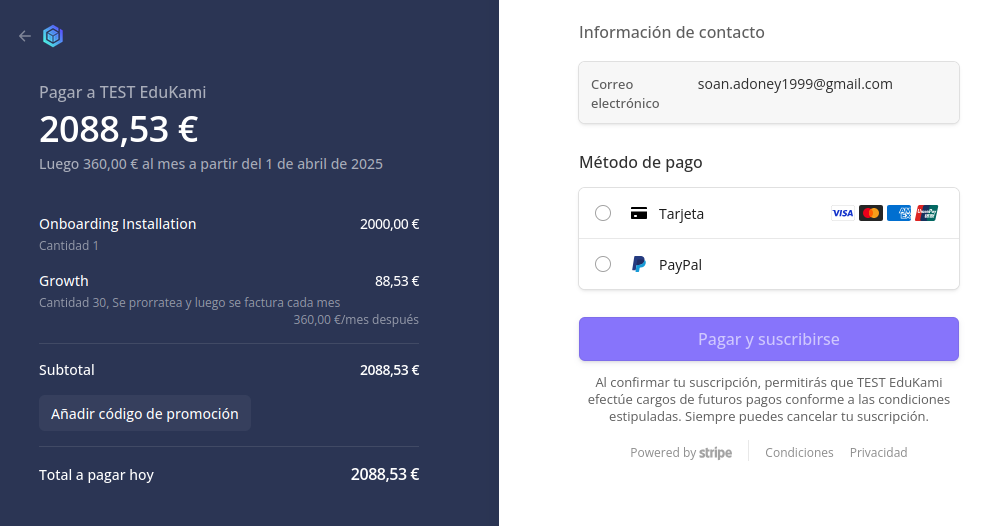
This entire service will have an initial surcharge based on the previously agreed-upon plan, only for the Startup and Growth plans.
Billing History
In this section, administrators can review generated invoices with the following details:
- Invoice Number → Example: EDUKAMI-0007.
- Payment Status → Indicates whether the invoice has been paid or is pending.
- Issue Date → The date the invoice was generated.
- Total Amount → The total cost of the invoice.
- Download Invoice → A button to download the invoice in digital format.

Manage Plan
- Manage Plan → Allows switching between subscription plans or cancel it, manage users limit and modify billing information.
Click the Manage Plan button to be headed to the portal session.
Portal Session
This area allows you to modify any kind of information related to your current plan.
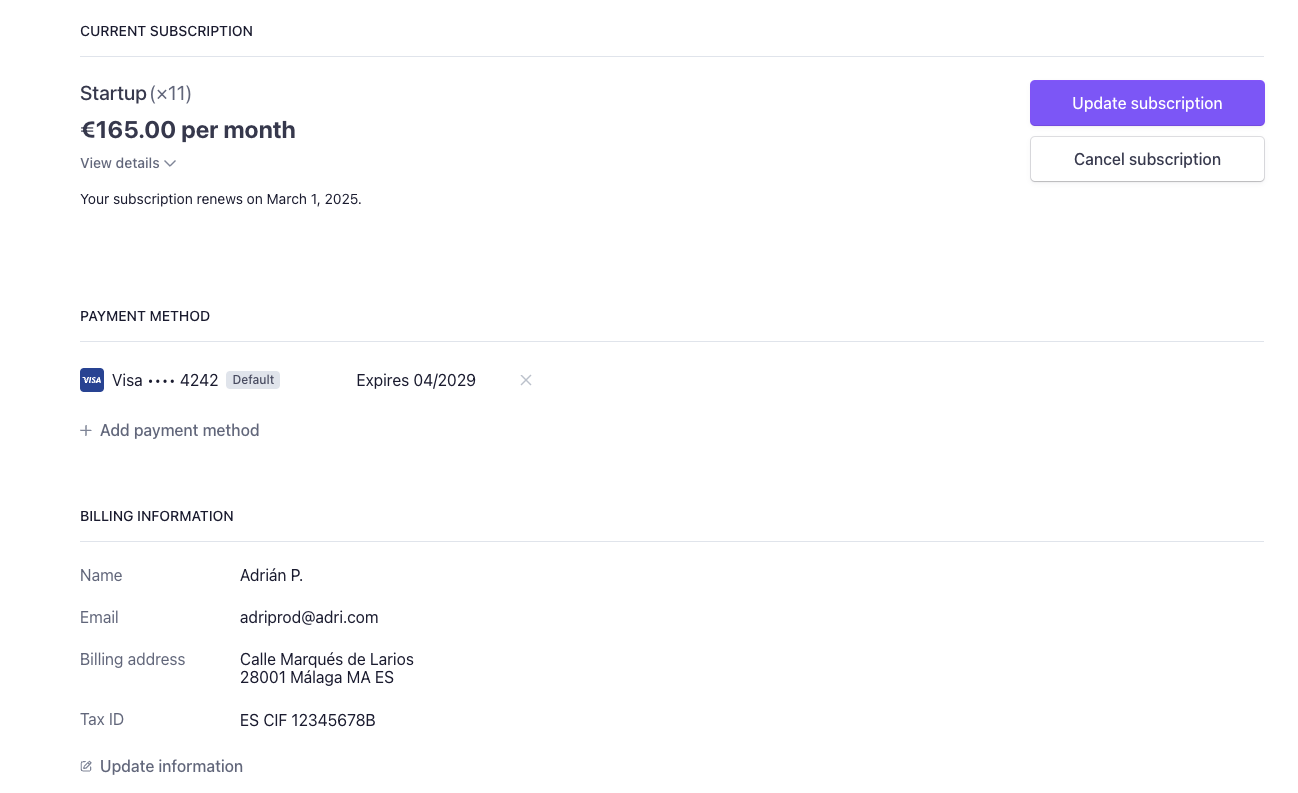
Update Subscription
Click the Update Subscription button to manage your plan.
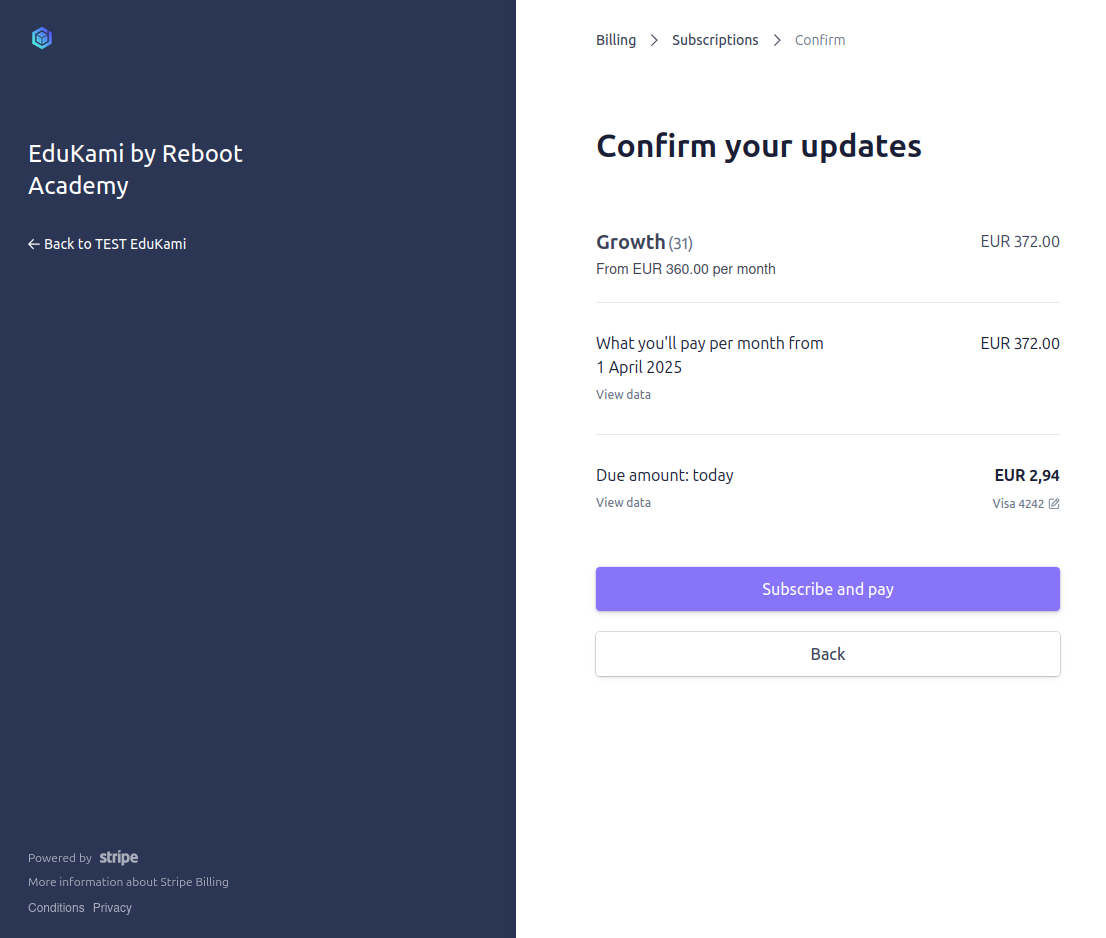
After clicking the Update Subscription button, you will be redirected to this view. In here, you can either change your current plan or manage the amount of users you are paying for.
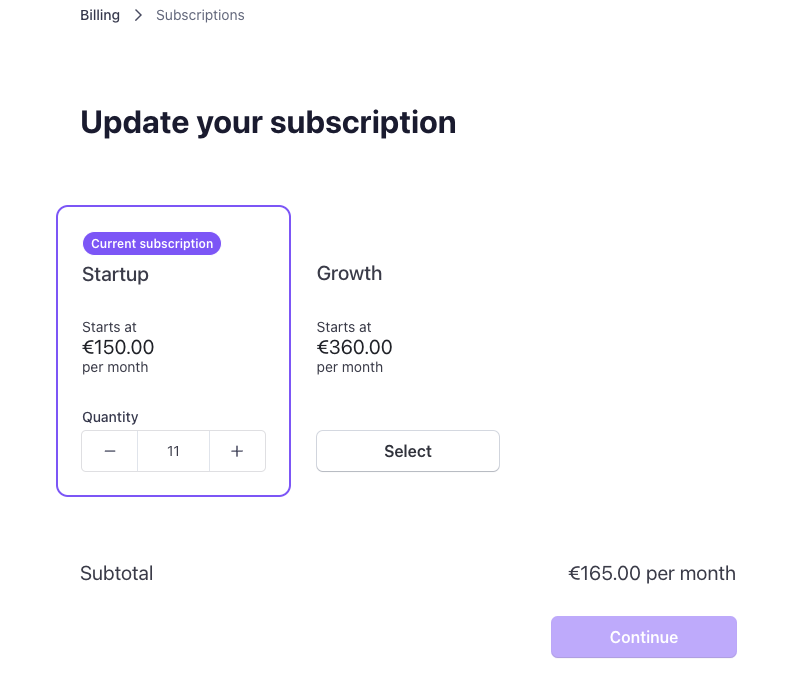
How it works
Change Current Plan
- Select your new plan.
- Click Continue button.
- Update your current subscription.
- Your new plan is ready to use.
Manage Users Amount
- Choose the total amount of users you need.
- Click Continue button.
- Update your current subscription.
- Your plan is updated and ready to use.
Cancel Subscription
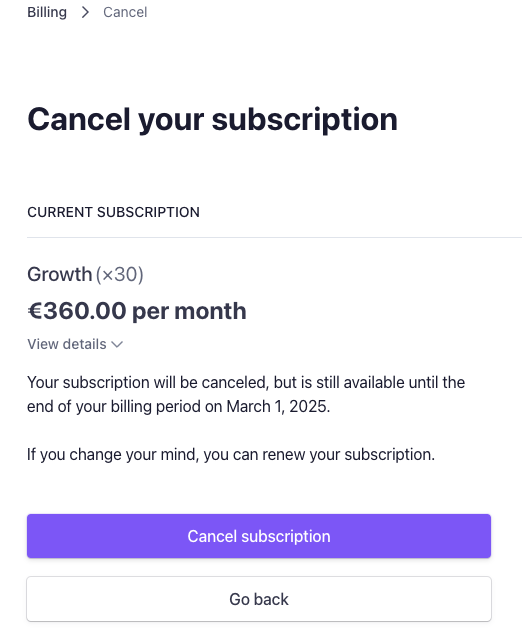
Click the Cancel Subscription button to cancel your plan.
After clicking the Cancel Subscription button, you will be redirected to this view. In here, you are able to cancel the current subscription.
Payment Method
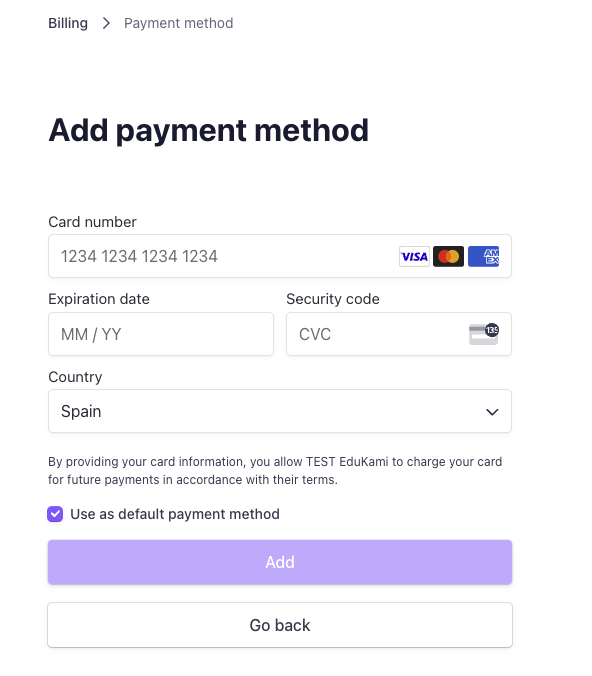
Click in Add payment method to add a new card.
After this, you will be redirected to this view. In here, you are able to add a new card and choose it as the default payment method if needed.
How it works
- Fill in the card details.
- Optional: choose it as default payment method by selecting the checkbox.
- Click Add button to save details.
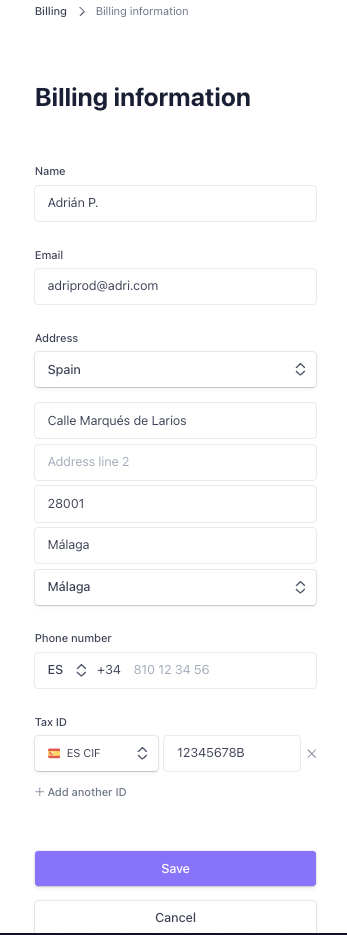
Billing Information
You can modify your billing information at any time.
Click in Update information to view the area enabled to do so.
How it works
- Modify the details needed.
- Click Save button.