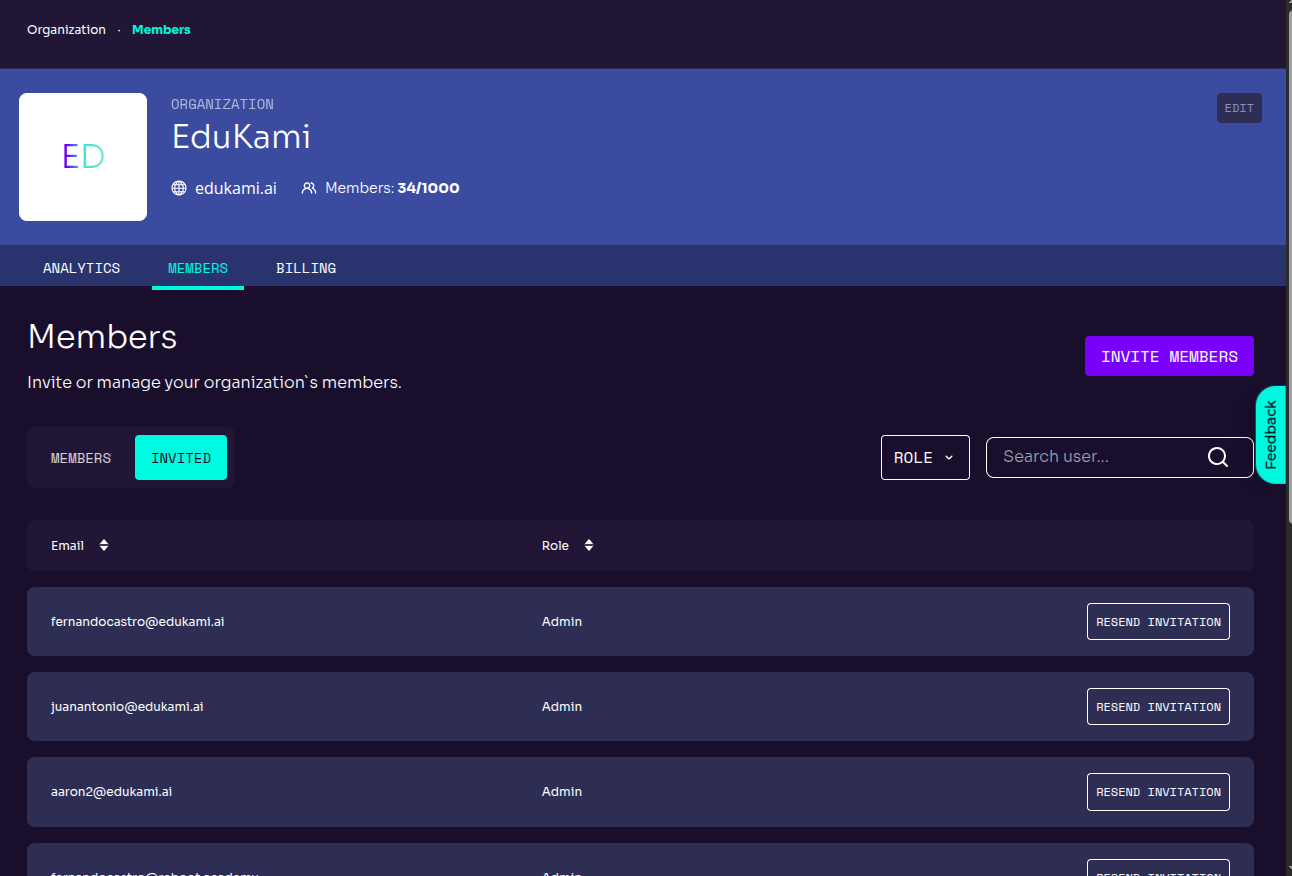
Members
The Members tab provides an overview of all users in the organization.
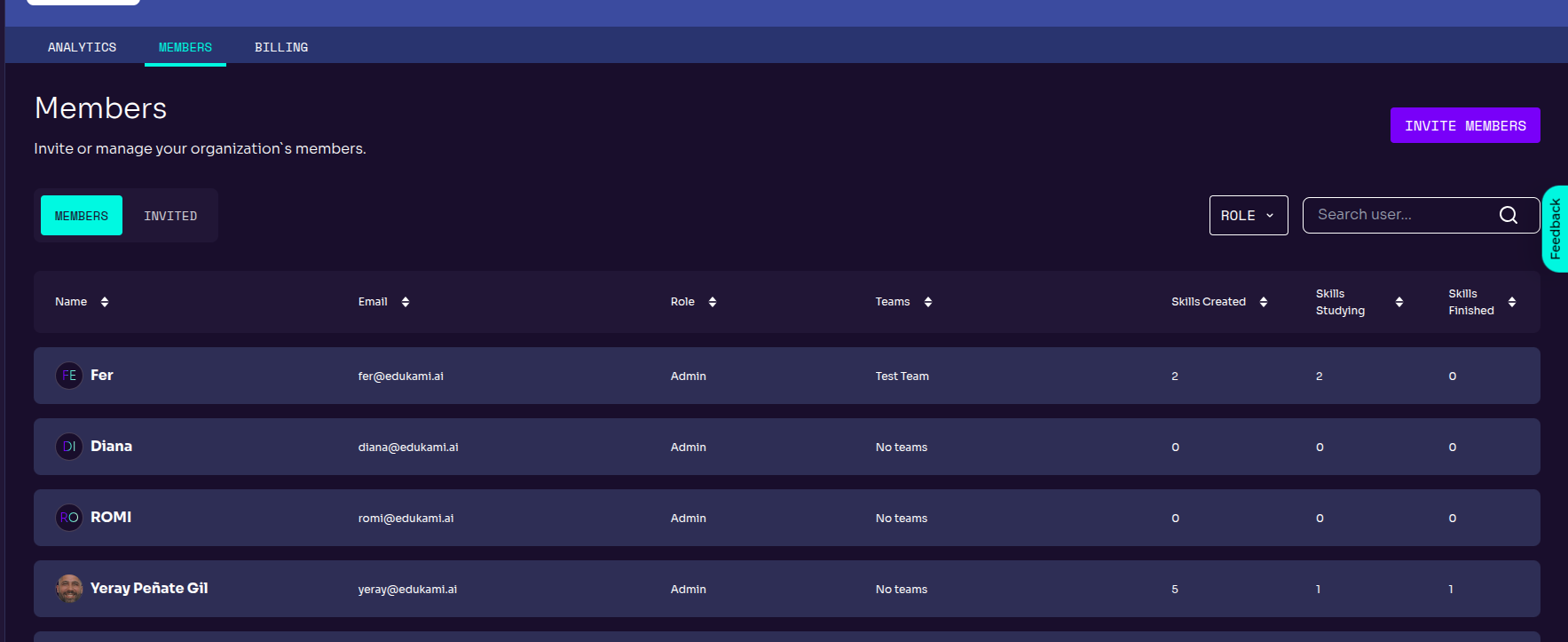
Manage Profile
Click the EDIT button located at the top right:

Within this menu, you can:
- Update the organization's name.
- Change the organization's logo.
- Set or modify the organization's website.
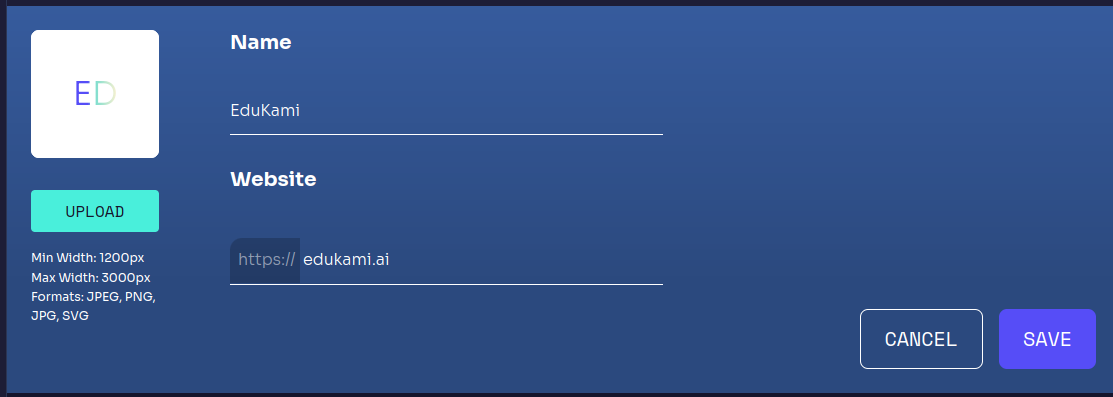
User Profiles
Only the Owner and Administrator roles can invite new users to the platform. Invited users will be automatically added to the organization from which they were invited.
- View a list of all members of the organization.
- Each user displays their role, email, and a summary of their
Skills. - Filter members by role.
- Search for a user by name or email.
Administrators and Owners can edit the organization's details, including the name and logo.
🚀 Actions:
- Click on a user's name to view their profile.
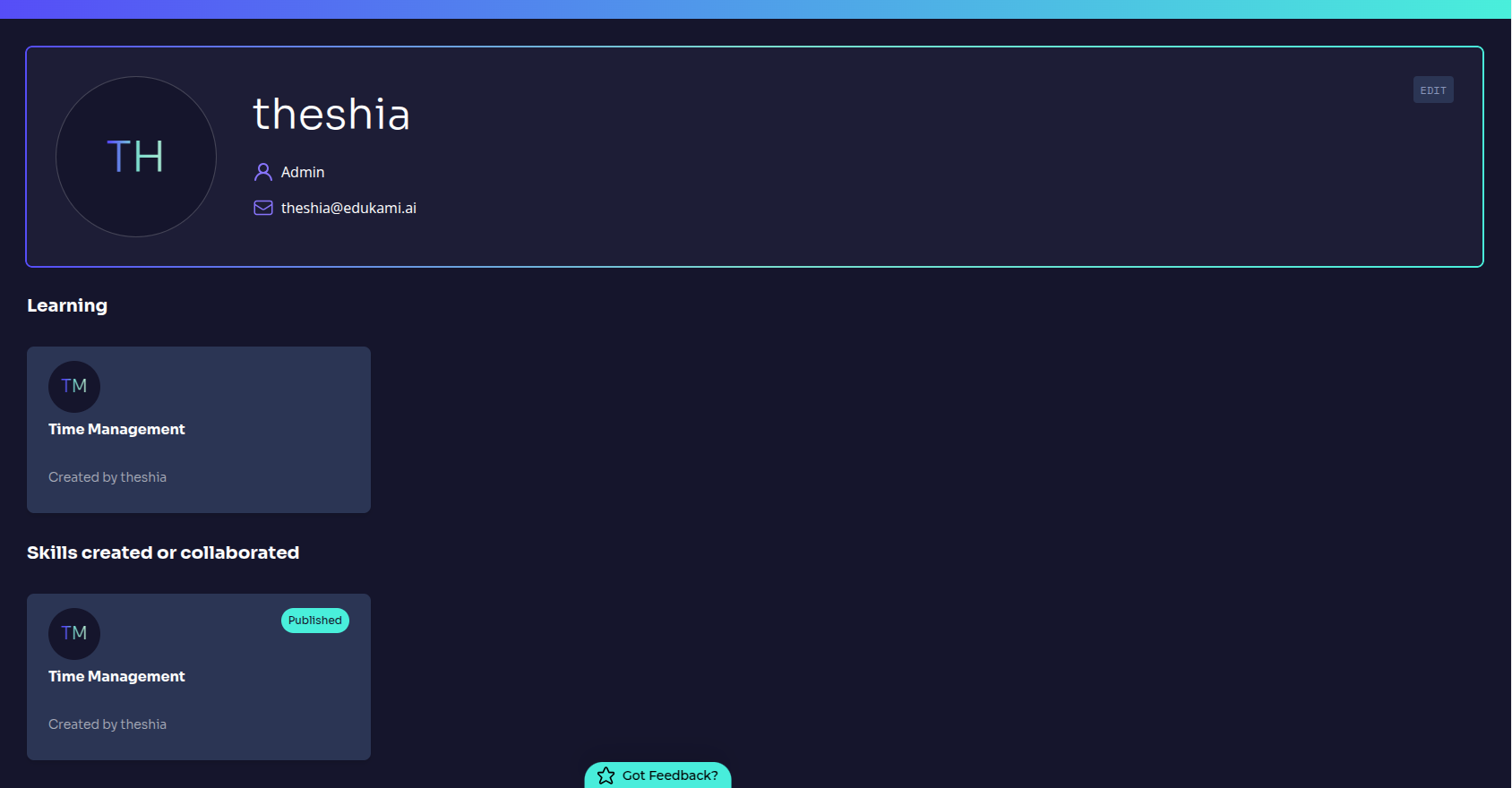
By clicking on a user's name in the Team Members list, their profile page will open.
How it works
- View the user's role and email.
- Check the skills they are learning.
- Review the skills they have created or contributed to.
- Click
EDITto modify the user's role.
Inviting Users
By clicking the INVITE MEMBERS button, you will find several ways to invite new members:
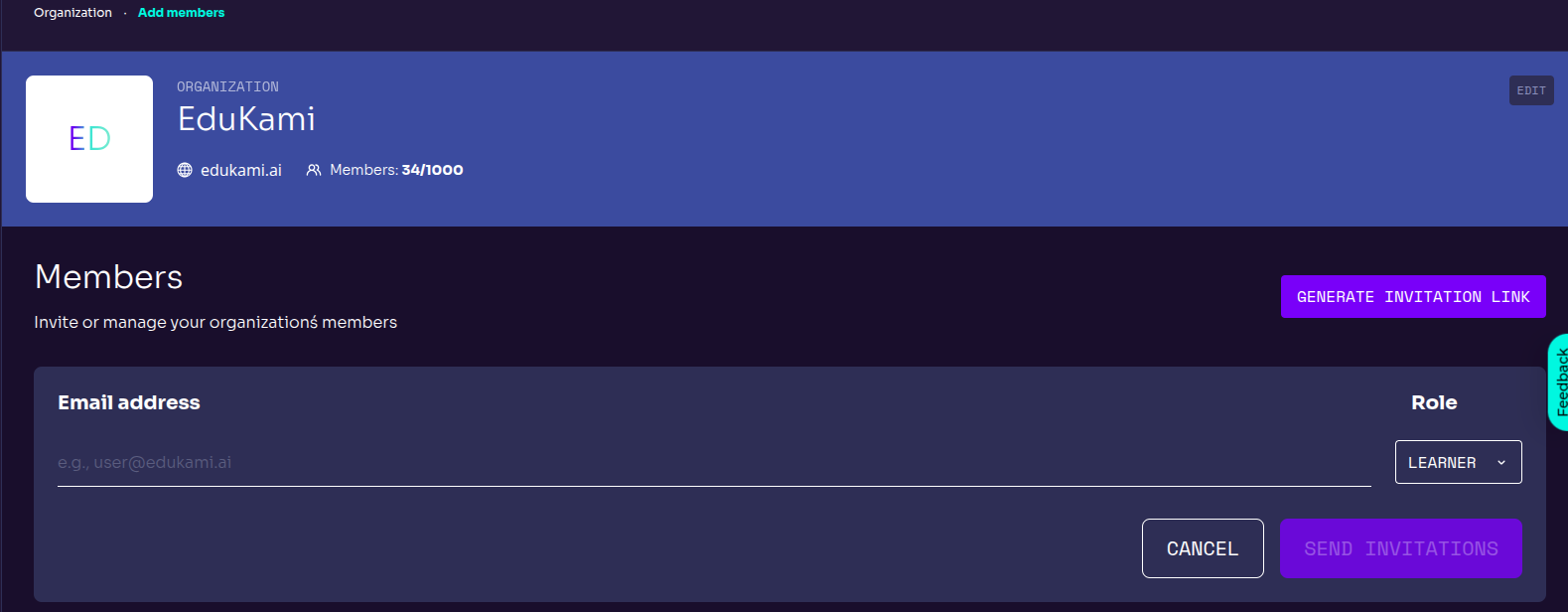
- Email → Manually enter an email address and assign a role.
- Invitation Link → Generate a link that users can use to join the organization.
- Invited Users Management → Manage the users your organization has invited.
Inviting Users by Email
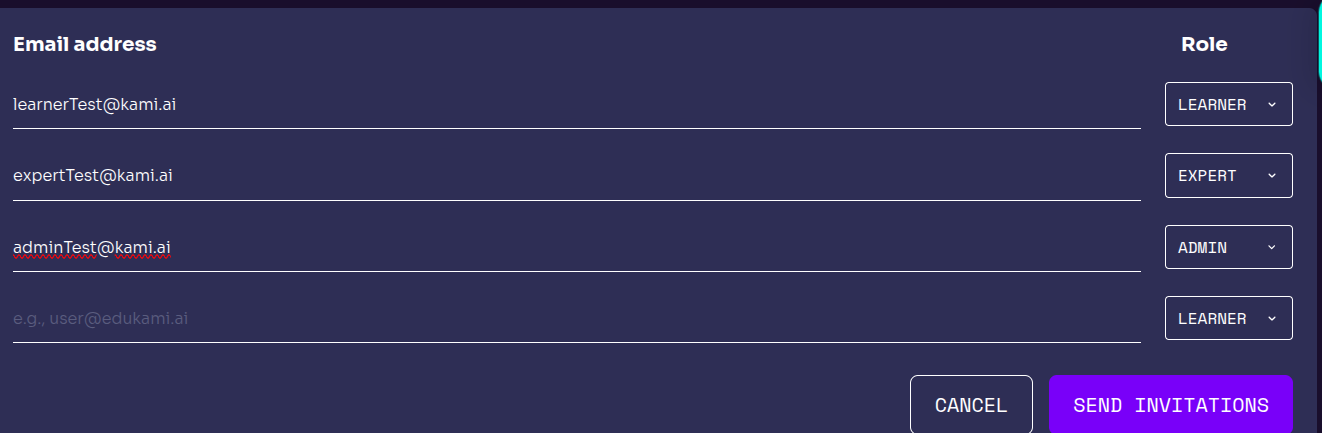
- Enter the user's email and assign a role before sending the invitation.
- You can send multiple invitations at once.
- Users will receive an email with a direct link to register for EduKami.
- Click
SEND INVITATIONS.
Inviting Users by Link
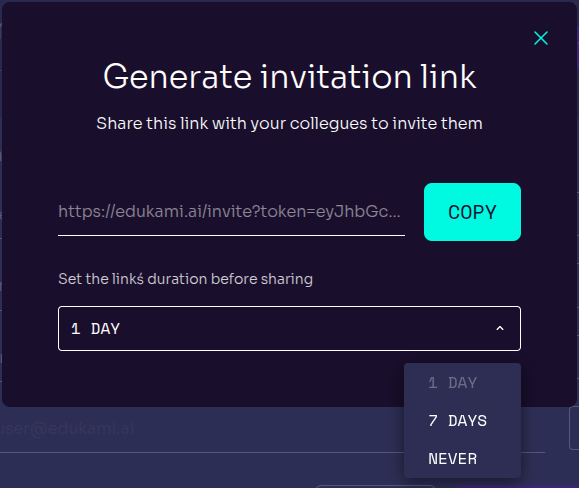
- Set an expiration time for the link (1 day, 1 week, no expiration).
- Users who click on the link will be added directly to the organization.
- Copy and share the link.
- The user will be redirected directly to a registration form.
Managing Invited Users
Users listed here are those invited by email.
How it works
- The
INVITEDtab shows all pending invitations. - If a user has not yet accepted the invitation, you can click
RESEND INVITATION. - Users are listed with their email and assigned role.
- Search and filter options allow you to quickly find invited users.