Managing & Publishing Skills
Once created, the expert can manage the skill’s information, handle collaborations, assign it to different teams, and publish it when it is ready for learning.
Important: Skills must be published for students to access them.
Published skills appear in the Skills Catalog, allowing users to enroll and start learning.
Users can share it with others, send it via Teams, or publish it:
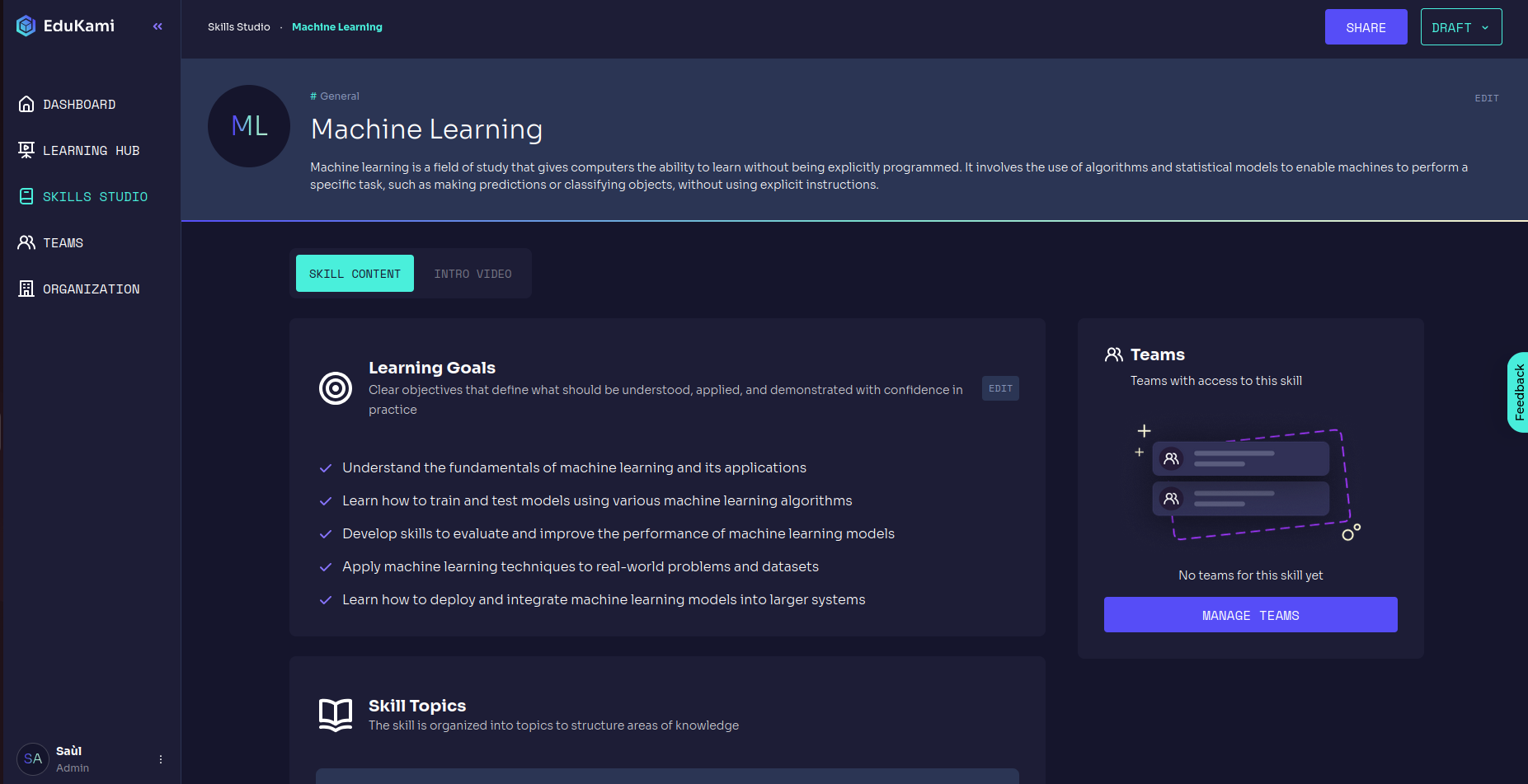
How It Works
📌 Ensure that all topics and learning objectives are complete.
Sharing with Other Users
You can share the skill with other users by clicking the SHARE button.
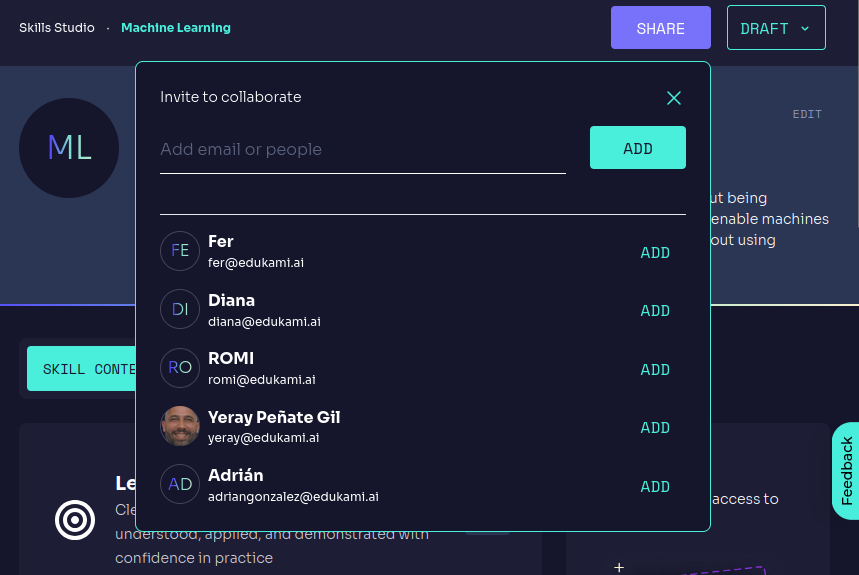
Once the menu is displayed, simply select the user you want to add as a collaborator.
Sharing via Teams
To share the skill via Teams, simply click the MANAGE TEAMS button.
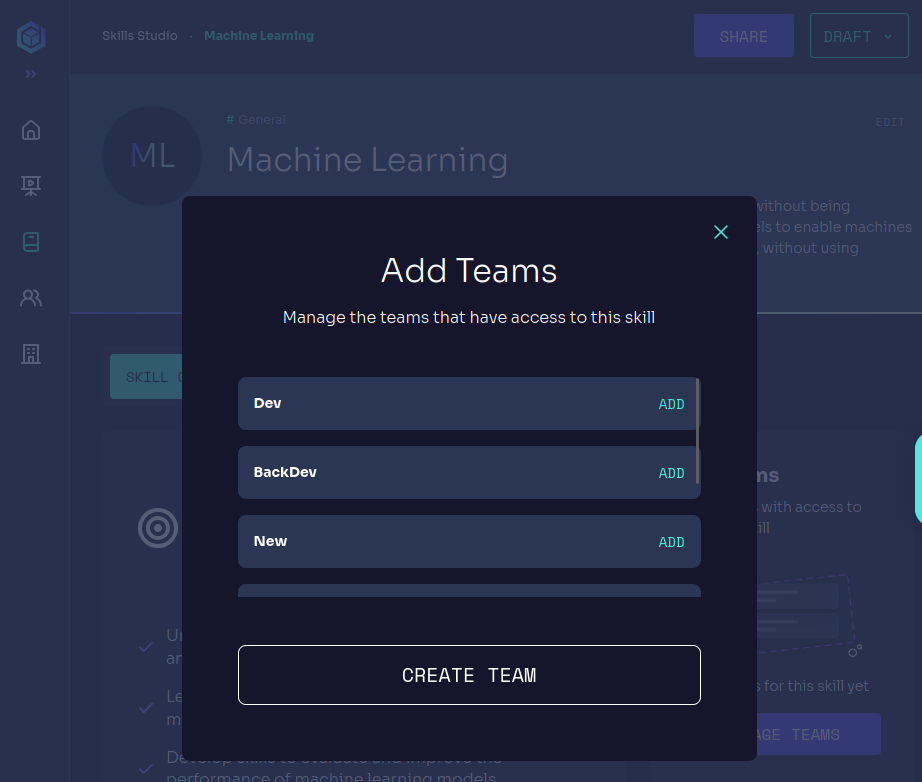
In this menu, you can directly add the Teams group that will participate in the skill, making it accessible to all its members.
Publishing
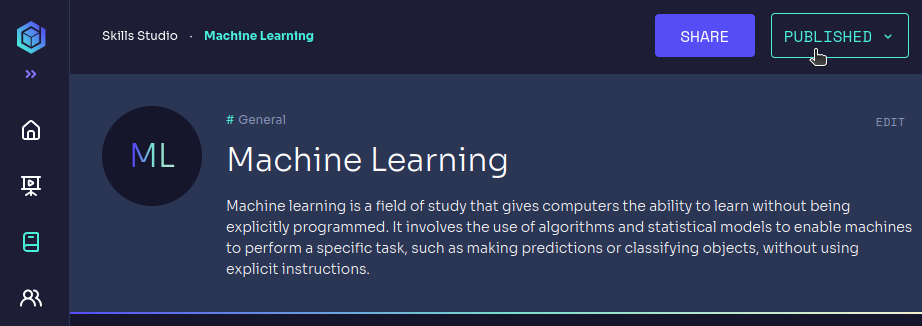
To make the skill available for students, go to the button that is initially set as DRAFT.
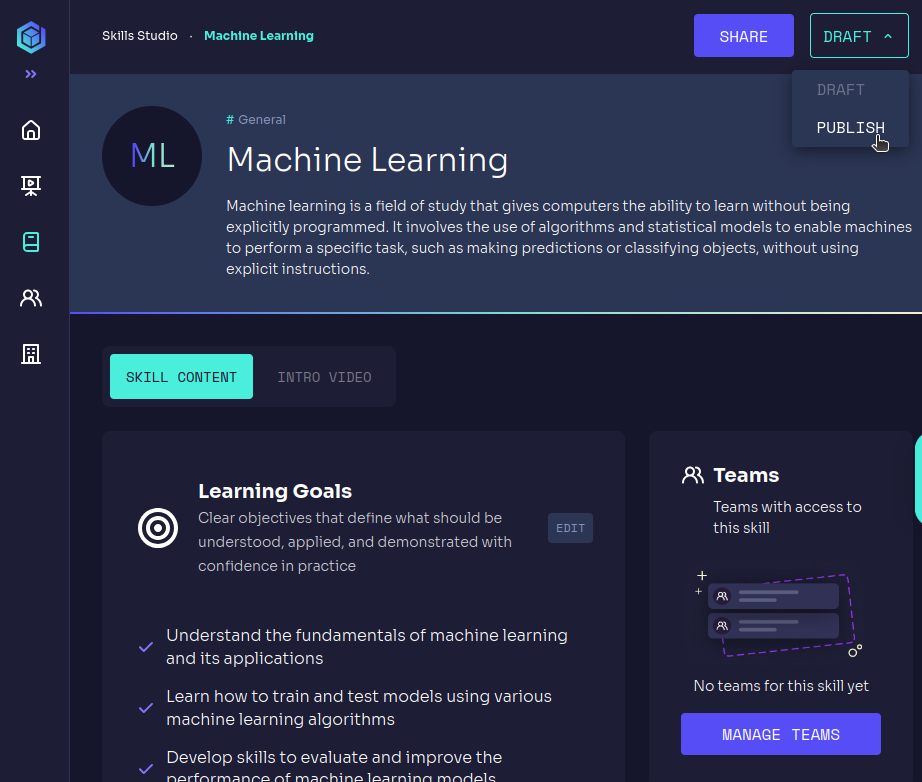
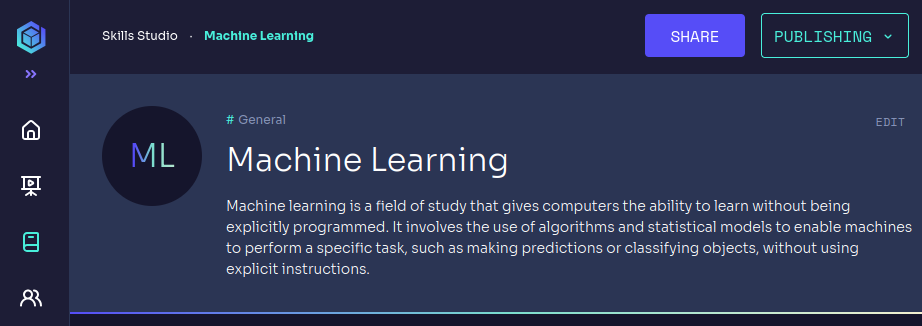
By clicking the PUBLISH button, the AI will automatically generate an introduction video for the skill, and the button that was previously labeled DRAFT will change to PUBLISHING.
You can watch the video by clicking the INTRO VIDEO button.
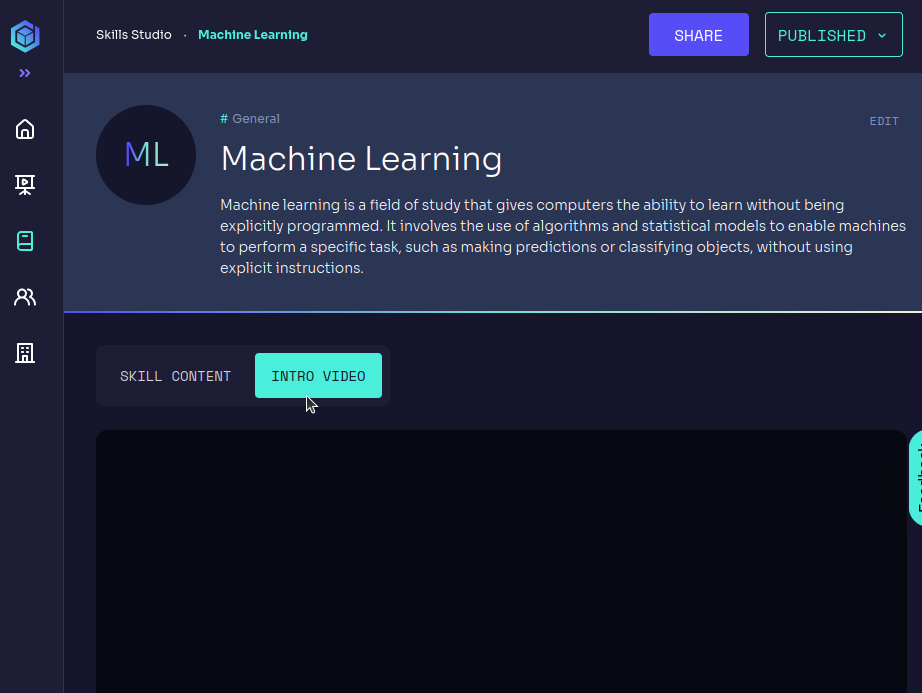
Finally, the button that appeared as PUBLISHING will change to PUBLISHED, and the skill will become accessible to students.