Feedback & Issue Reporting
We use UserSnap to provide a seamless way for users to report issues and request new features. This tool allows you to capture screenshots, annotate issues, and send feedback directly to our team.
How to Report an Issue
- Click on the Feedback button available on the bottom-right corner of any page around EduKami.

- A UserSnap widget will open.
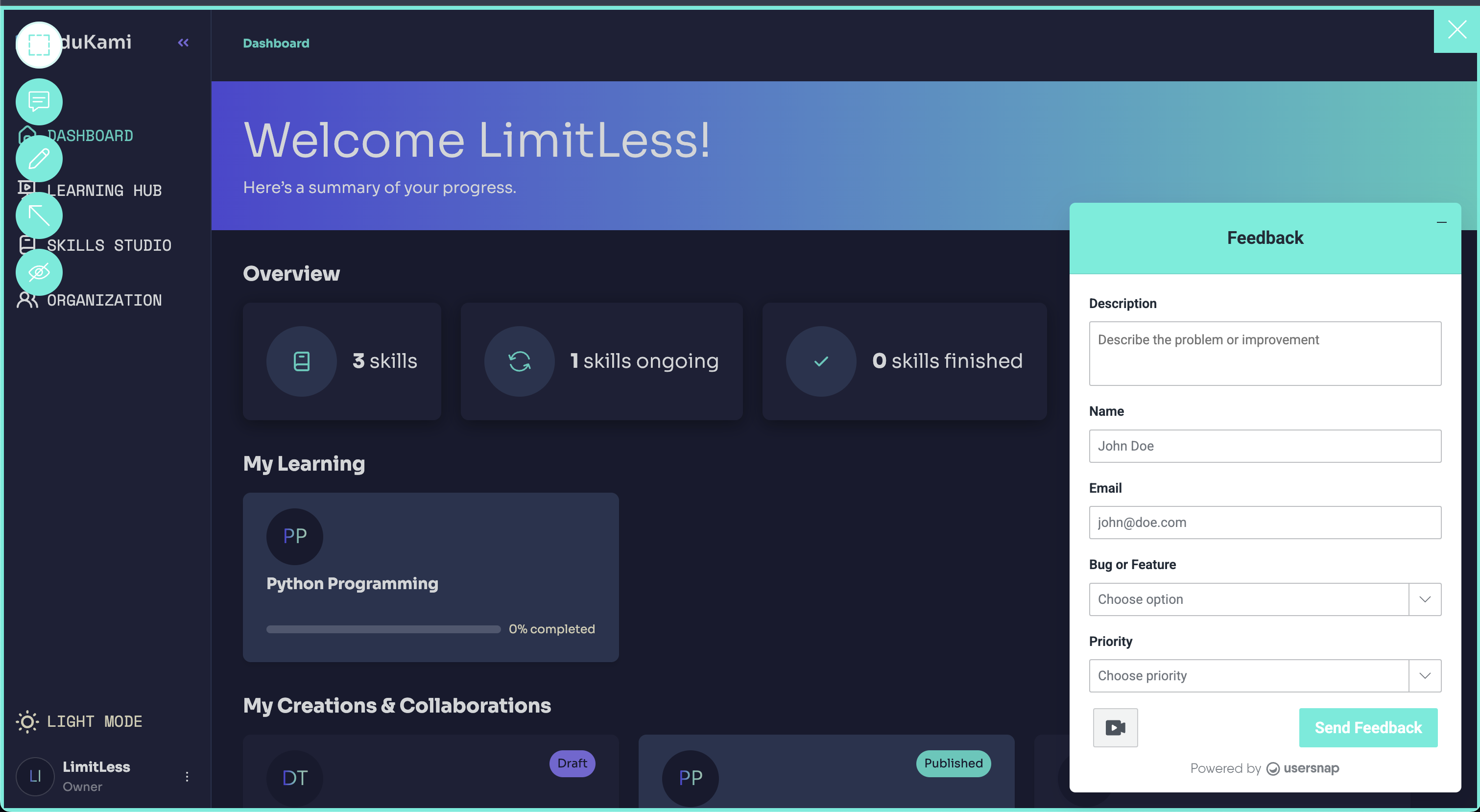
- Select the type of feedback you want to submit:
- 🐛 Report a Bug
- 🌟 Request a Feature
- Optionally, take a screenshot or record a video and annotate the issue directly in the widget.
- Provide a brief description of the issue or feature request.
- Click Submit to send your feedback.
Why Use UserSnap?
- 📸 Visual Feedback – Attach screenshots to better illustrate your issue.
- 📝 Easy Annotation – Draw directly on screenshots to highlight key areas.
- 🔗 Automatic Context – UserSnap captures relevant metadata (e.g., browser, OS, viewport size) to help diagnose issues faster.
Where Does My Feedback Go?
All submitted feedback is collected in our internal tracking system, where our team reviews and prioritizes issues and feature requests. You may receive follow-ups if additional details are needed.
Need Help?
If you have any issues using the feedback tool, reach out to us via support@edukami.ai.